

How Mitti-GO works
A parent chooses channels and playlists, Mitti GO strips out everything else, and the child watches only what's allowed. Here's how it fits together — from first setup to Screen Time.
- playlist_add_check
The parent chooses
Adds the channels and playlists they trust — from Mitti GO's suggestions or their own.
- verified_user
Mitti-GO filters
Keeps only what's allowed: no recommendation feed, comments, likes or ways out to YouTube.
- smart_display
The child watches
Sees familiar channels as big cards, and new videos from them appear on their own.
Set up in a couple of minutes
 1
1Open Mitti-GO
First comes a short three-step setup.
 2
2Pick a language
For the whole app — and for channel suggestions.
 3
3Create a PIN
Four digits lock the parent area. The child's side opens without one.
 4
4Add channels
From Mitti GO's suggestions or your own — by name, @handle or link. You can skip this step.
 check
checkHand the phone over
Your child sees only what you chose. New videos from those channels appear on their own.
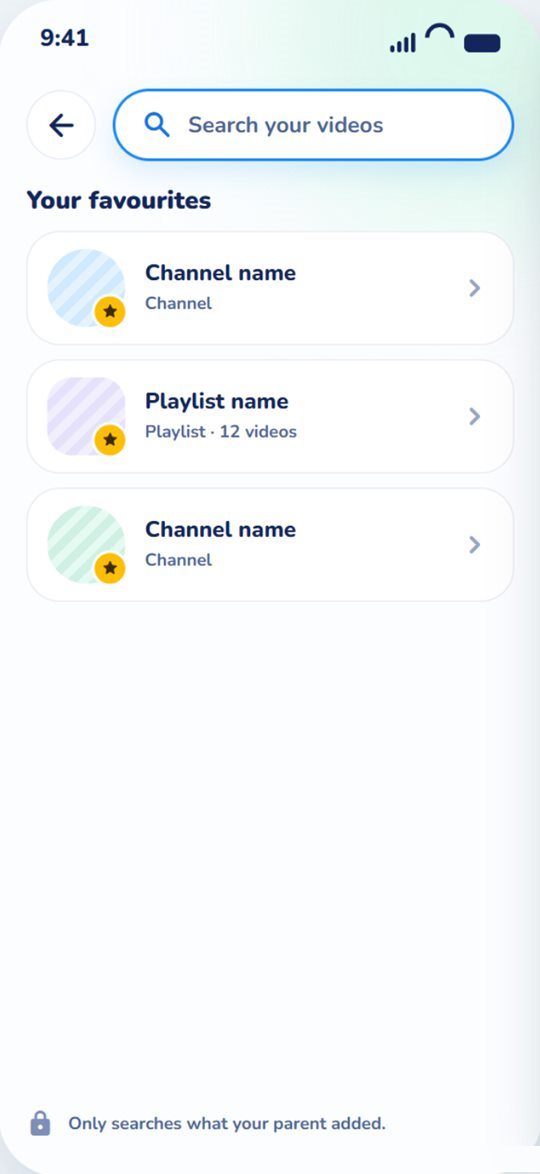
infoApp screens; the channels and videos on them are placeholders.
What the parent decides
Single videos can't be added — only channels and playlists. It's easier to keep track, and new videos from allowed sources appear on their own.
Whole channel
Every video and playlist on the channel is allowed. For creators you trust. Free: up to 5 channels.
Playlists only
Allow one playlist; the rest of the channel stays closed. Free: up to 10 playlists.
Hide a playlist
Don't like a playlist on an added channel? Hide it — those videos disappear everywhere for your child.
The star is a Favorite
The channel comes first for your child. It grants nothing and doesn't count toward limits.
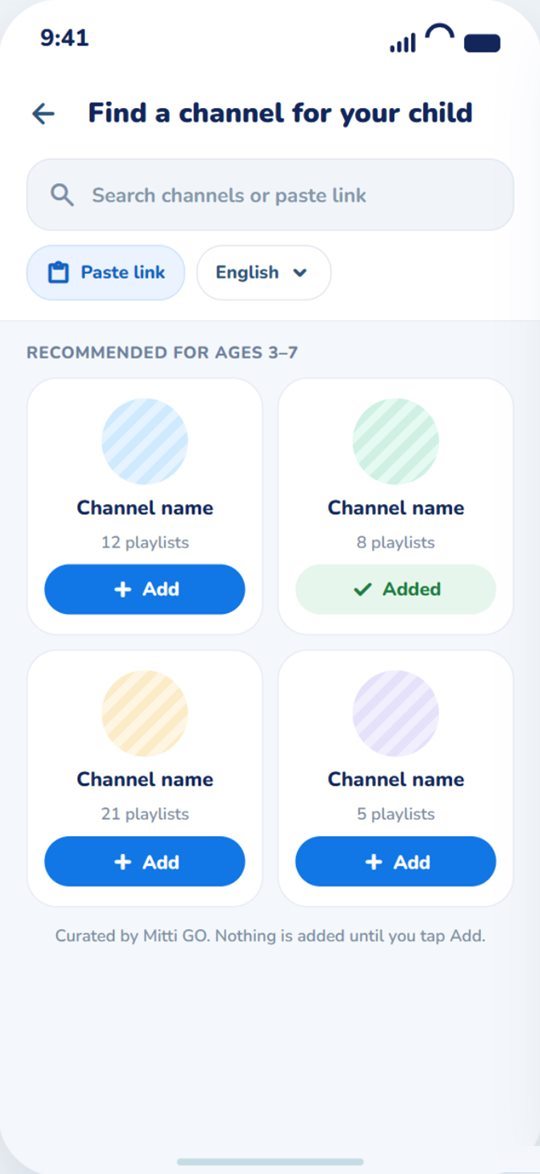
What your child sees
Big pictures, big buttons and icons instead of words — clear even before they can read.
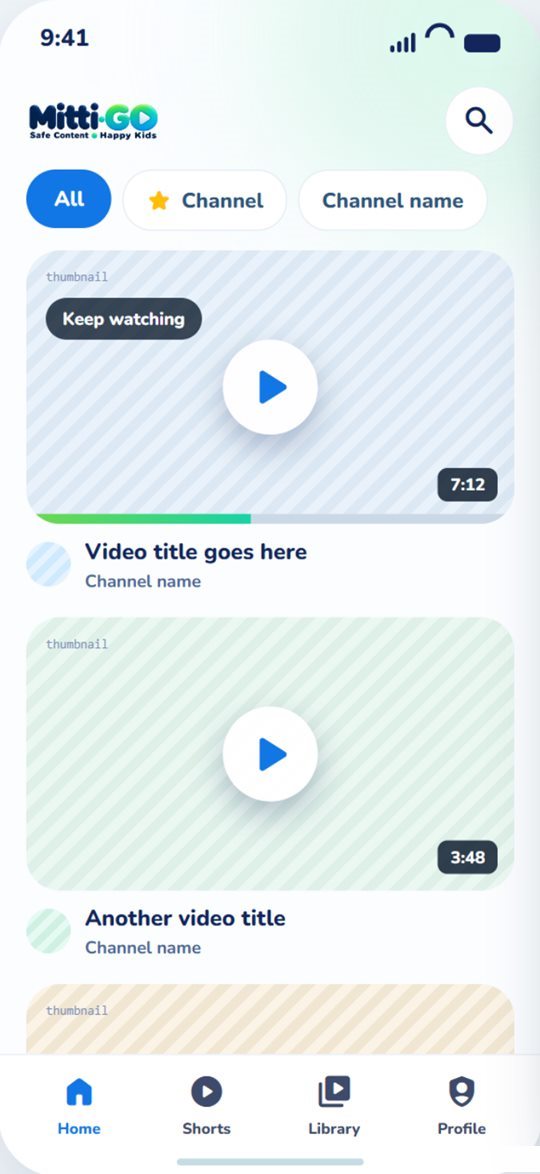
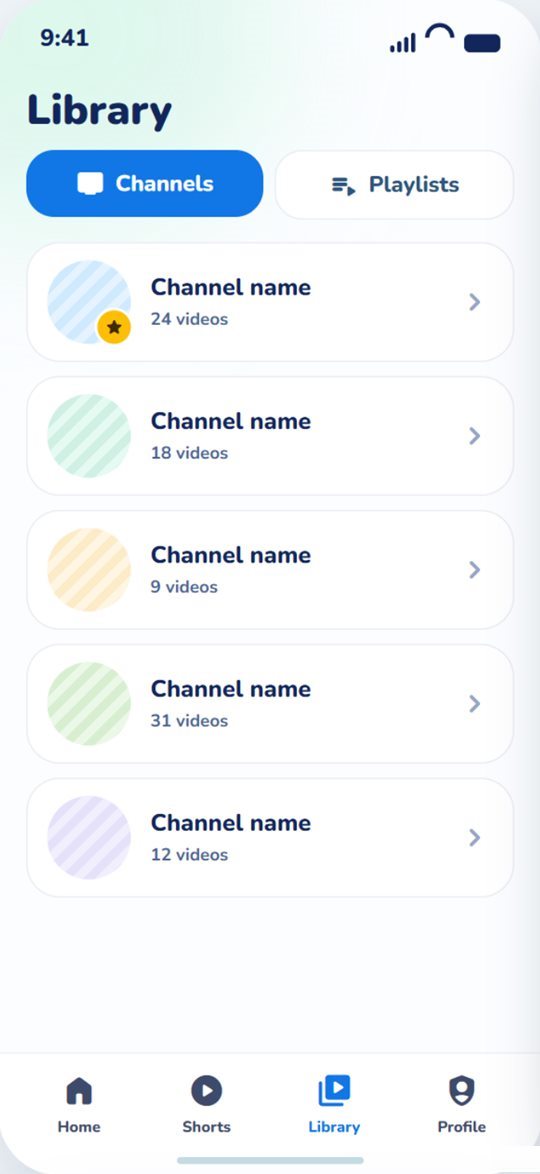
One big video per row
No carousels, no endless shelves. The unfinished video sits on top.
No views, no likes
A picture, a title and a duration — and no popularity counters.
Search stays inside
It looks only through what a parent added, right on the device.
Shorts only if you say so
Off by default. Turn them on and only Shorts from allowed channels appear — never a global feed.
Autoplay is off
Your child picks what plays next. Prefer otherwise? Switch it on in settings.
Nothing scary
When something is no longer allowed, it simply disappears. No “Blocked by your parent”.
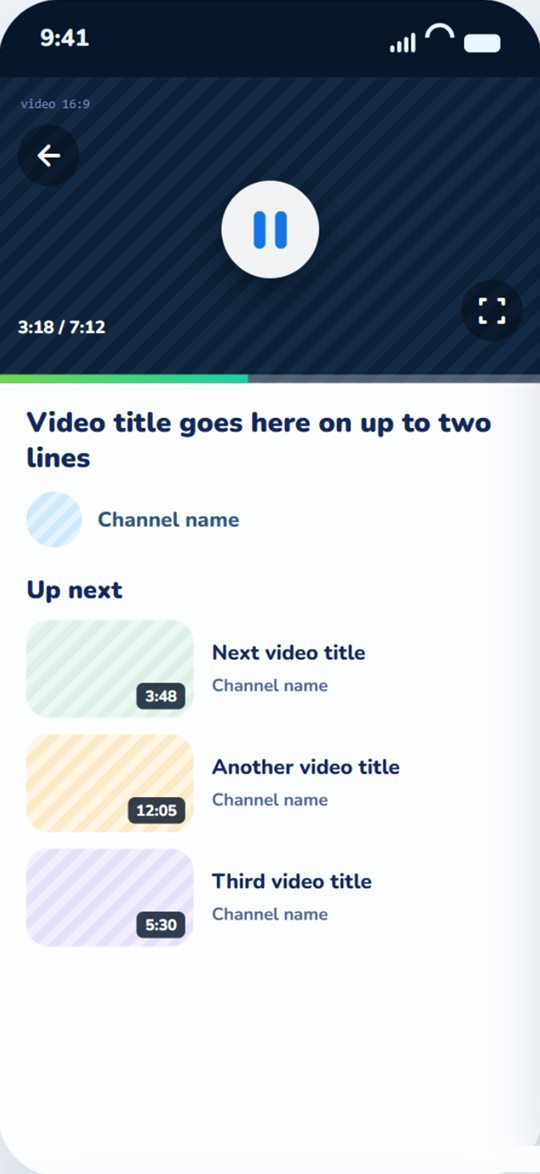
No way out of the player
Videos play in YouTube's official player, and Mitti GO closes every way out of it.
Our own end screen
“Watch again” and what's next — only from allowed videos. YouTube's suggestions can't be tapped.
Up Next that makes sense
Watching a playlist? The playlist continues. Opened a channel? That channel's videos.
Remembers where they stopped
The unfinished video waits first on Home with a Keep watching tag.
Pauses in the background
Leave the app and the video pauses. Turn the phone for full screen.
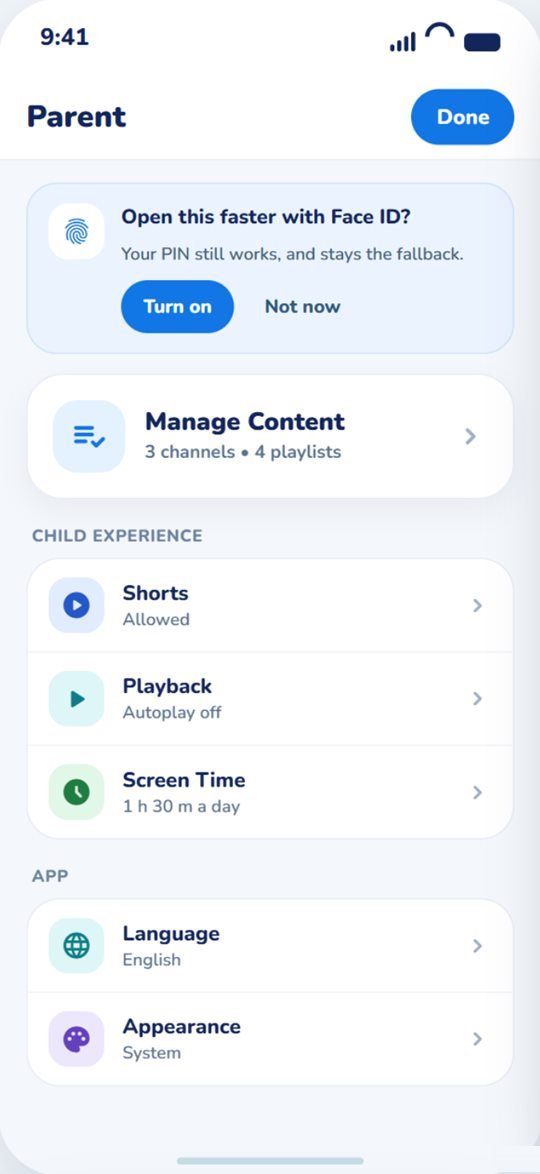
A parent area behind a PIN
It opens from the Profile tab. Everything is at hand: content, Shorts, language, theme, security.
PIN or biometrics
Fingerprint or Face ID if you like. The PIN is always the fallback.
Done locks everything
Press Done, step into the child area or leave the app — the parent area locks at once.
Guessing doesn't work
After five wrong tries the keypad pauses. A restart or a clock change won't reset it.
Everything at a glance
Counters like “3 / 5” and plain labels: Included, Hidden, Paused.
Screen Time · Pro
Screen Time is part of Pro. On Free nothing is counted and nothing is locked. More on the Plans page.
Daily limit
How long your child can watch each day. Resets at midnight.
A 5-minute heads-up
The mascot says “Almost time for a break!” — no countdown, never over the video.
They can finish
If time runs out mid-video, it may finish — up to 15 extra minutes.
Bedtime
Allowed hours like 08:00–20:00, separate for weekdays and weekends.
Questions about how it works
Can I allow or block a single video?add
No — only channels and playlists. It's easier to keep track, and new videos arrive on their own. If a channel has a playlist you don't want, hide it.
Does it need the internet?add
To watch and to add channels — yes. Removing a channel, hiding a playlist or starring work offline. Offline, your child sees the list that's already saved.
Will my child see ads?add
Mitti GO shows no ads of its own. Ads YouTube sometimes plays inside its player stay — YouTube's rules forbid hiding them.
A video won't play — what now?add
Some creators don't allow their videos in other apps, and live streams aren't supported — Mitti GO simply doesn't show those. If a video won't load, check the connection and tap Try again.
See what the free plan includes, or read answers to what parents usually ask.