
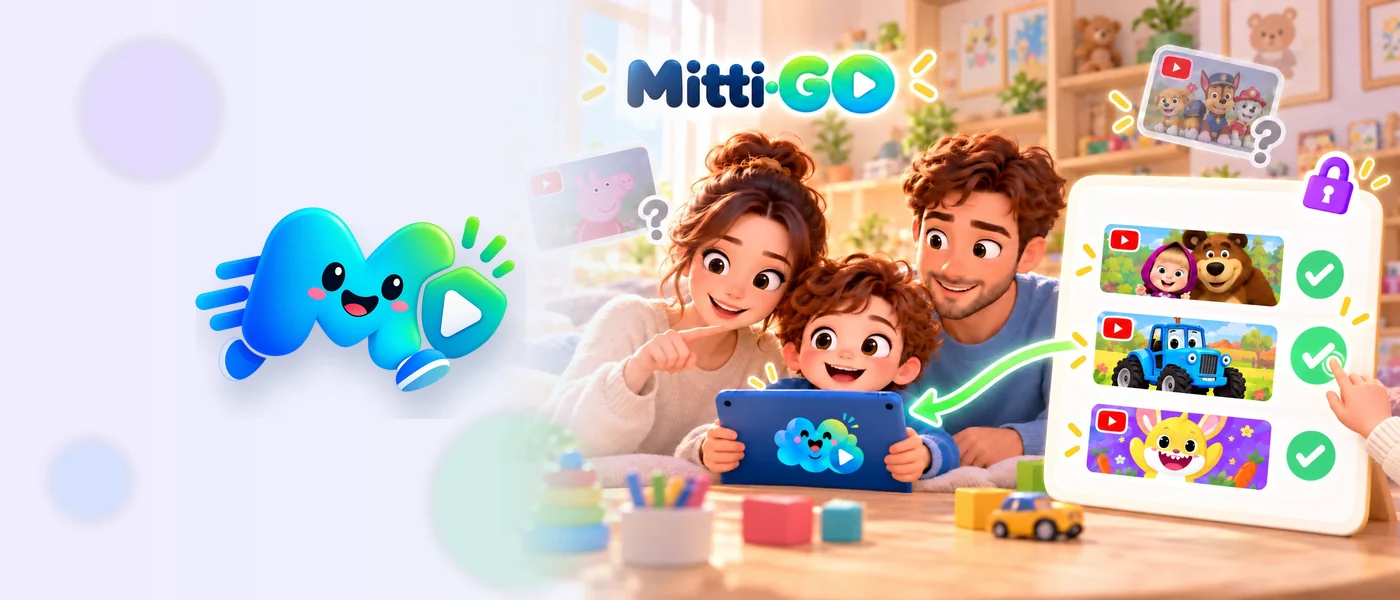
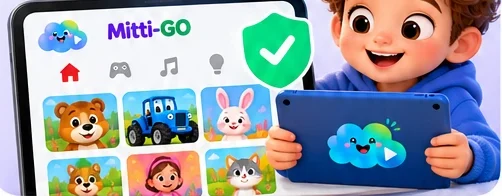
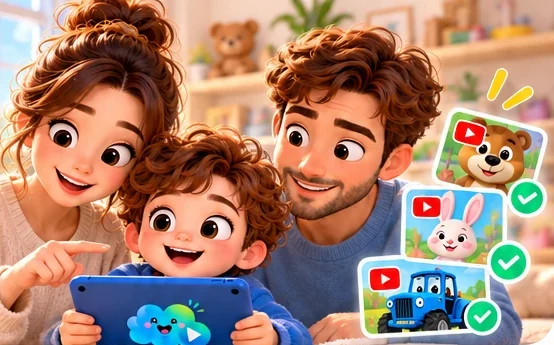
A whitelist is a list of channels and playlists you've approved. In Mitti-GO that's all your child sees: no recommendations from across YouTube, no random channels and no “one more video” from the algorithm.
It sounds simple, but the details matter: you can allow a whole channel or just one playlist, hide what you don't want and lock the settings with a PIN. Here's how it works, step by step.
You choose channels and playlists — your child watches only what's approved.
How it works: 6 steps
The parent chooses
Add a channel from Mitti-GO's suggestions or find your own — by name, @handle or link.


 add
add
Whole channel or a playlist

Allow the whole channel if you trust the creator. Or pick a single playlist — the rest of the channel stays closed and your child can't open its page.
 Cartoonscheck_circle
 Carsradio_button_unchecked
 Songsradio_button_unchecked
Only your library
Your child sees only the content you chose. Search works only inside the approved library, right on the device.
Hide what you don't need
Don't like a playlist in an added channel? Hide it — those videos disappear from your child's library everywhere. Hidden playlists don't count toward limits.
Cartoonscheck_circleCarsvisibility_offSongscheck_circle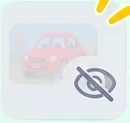
Settings are protected
The parent area is locked with a PIN, or a fingerprint or Face ID if you like. Shorts are off by default, and if you turn them on — only from approved channels.
Worth remembering
New videos from an approved channel appear for your child automatically. So check your choices from time to time, and for finer control allow separate playlists.
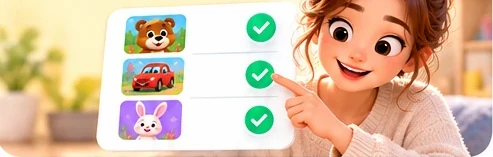
 Parents choose
 Mitti-GO shows
 Kids watch
Whitelist vs blacklist: what's the difference
Everything is open except what you've blocked. New and unfamiliar content reaches your child before you get a chance to check it.
Everything is closed except what you've allowed. A new channel never appears on its own — only after you decide.
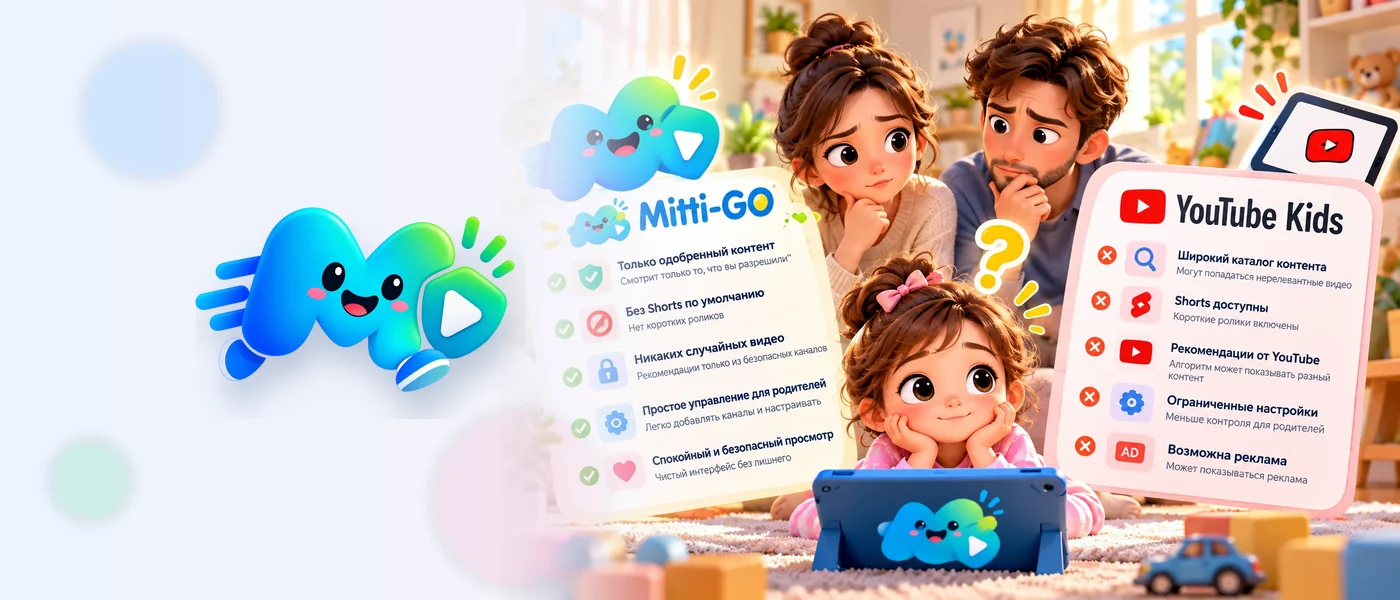
Mitti-GO works only as a whitelist: it isn't an extra mode, it's the foundation of the app. How that differs from YouTube Kids — see “How is Mitti-GO different from YouTube Kids?”.
How to build a good whitelist
- Start with 3–5 channels. A short list is easier to check and easier for your child to choose from.
- Big channel? Use playlists. Popular creators often have videos for different ages: allow only the playlists that fit.
- Watch a couple of videos yourself. A quick way to check a channel — “5 simple questions”.
- Star the favourites. Favorite channels come first for your child — a star grants no access and doesn't count toward limits.
- Review the list once a week. See what's new and hide what you don't want.
Not sure where to start? Here's a ready-made list: “10 safe YouTube channels for preschoolers”.
Common questions
Can I allow or block a single video?add
No — only channels and playlists. It's easier to keep track, and new videos arrive on their own. If a channel has a playlist you don't want, hide it.
What if an unsuitable video appears on an approved channel?add
Hide the playlist it's in, or remove the channel entirely — the video disappears for your child right away. For more control, allow only separate playlists from that creator.
Will my child see that a channel was hidden or removed?add
No. Anything that's no longer allowed simply disappears — no “Blocked by your parent” messages.
How many channels can I add for free?add
Up to 5 whole channels and up to 10 separate playlists. Playlists of added channels, hiding and Favorites are unlimited. More on the Plans page.
A whitelist isn't a set of bans — it's a calm space made of what you yourself think is good.
verified_userOnly what you approveHow Mitti-GO works →